
Use these tips to make Wixie easier to access in your Clever portal and get students working on digital projects quickly.
Use these tips to make Wixie easier to access in your Clever portal and get students working on digital projects quickly.


Make it easy to get to Wixie
Log in to your Clever account. You should arrive at your Homeroom.
Favorite Wixie
Go to the District Page option near the top of your dashboard.
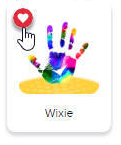
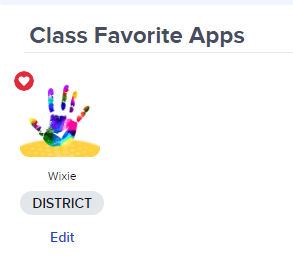
Locate the Wixie app icon, and select the heart in the upper left-hand corner.
This will place Wixie in the 'Favorites' section at the top of your Portal.
Add Wixie to your Clever Teacher Page
Clever offers personalized landing pages for teachers. There are actually two pages for teachers. One is a private page for the teacher to conveniently organize their most used and favorited apps for planning purposes. The other page is for them to share with their students, housing the personally selected classroom apps/resources and assignment links.
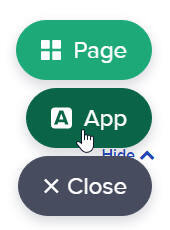
To Add Wixie to your Clever teacher page, select the Add button from the bottom-right of your Teacher Page.
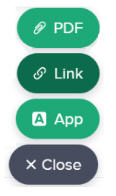
Select App from the list that appears.
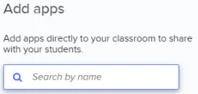
Type Wixie into the search field to find the application.
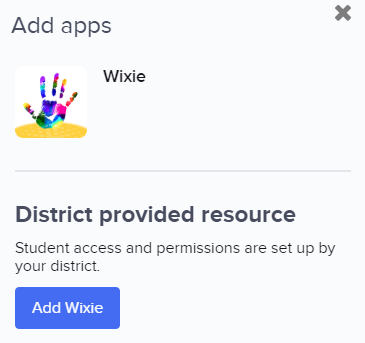
Select the Add Wixie button.
This will place a Wixie option on your Clever teacher page.
Make it easy for students to start specific Wixie activities
Wixie has great templates for writing, math practice, bell ringers, and much more.
Log in to your Wixie account. Browse or search to find an activity or template you want to use with students.
Select the three dots next to the file and choose Share.
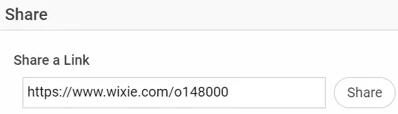
At the Share dialog, copy the URL to the file in the field at the top.
Return to your Clever Teacher Page.
Select the Add button on the bottom of your Teacher Page.
Select Link from the list that appears.
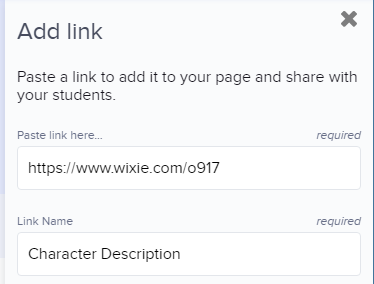
Paste the URL for Wixie project into the field and type a name for the link.
Use the Category drop down to choose Class Assignments.
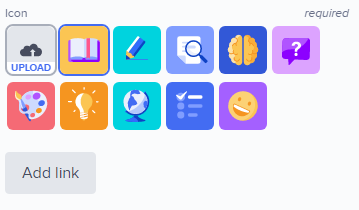
Select one of the provided icons or upload your own.
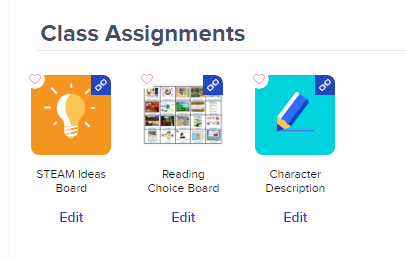
Select the Add link button. You will see the icon and link in your Class Assignments.
Students simply select the icon to launch Wixie and begin working on this specific file.